Real-time PSI, AQI, and PM2.5 tracking with vibrant iPhone Home Screen widgets, Always-On Lock Screen dials, and an independent Apple Watch companion.
Follow these 4 simple steps to install HazeWatch and place live air quality gauges directly on your Home Screen, Lock Screen, and Apple Watch.
Get early beta access on your iPhone using Apple's official TestFlight app.
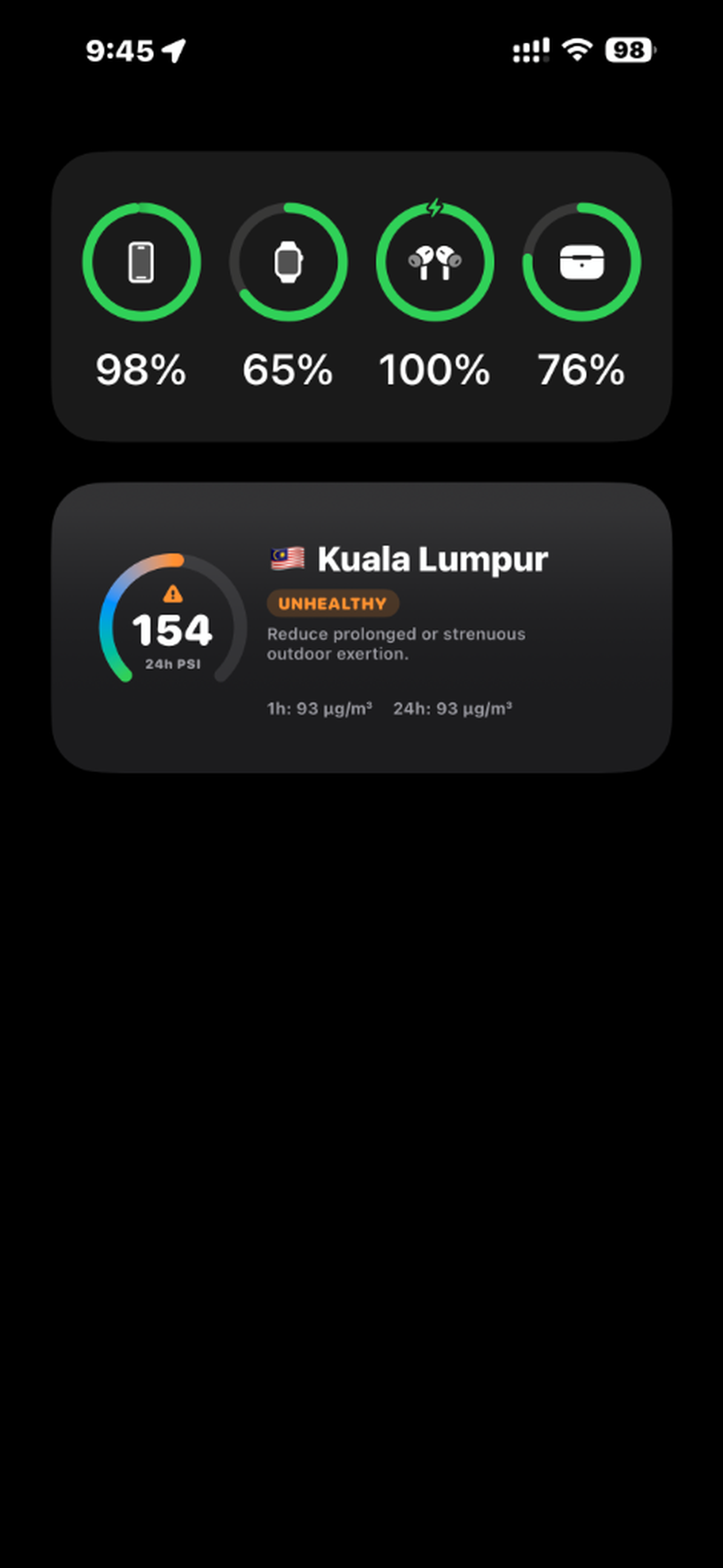
Keep real-time PSI and health status directly on your iPhone home screen.
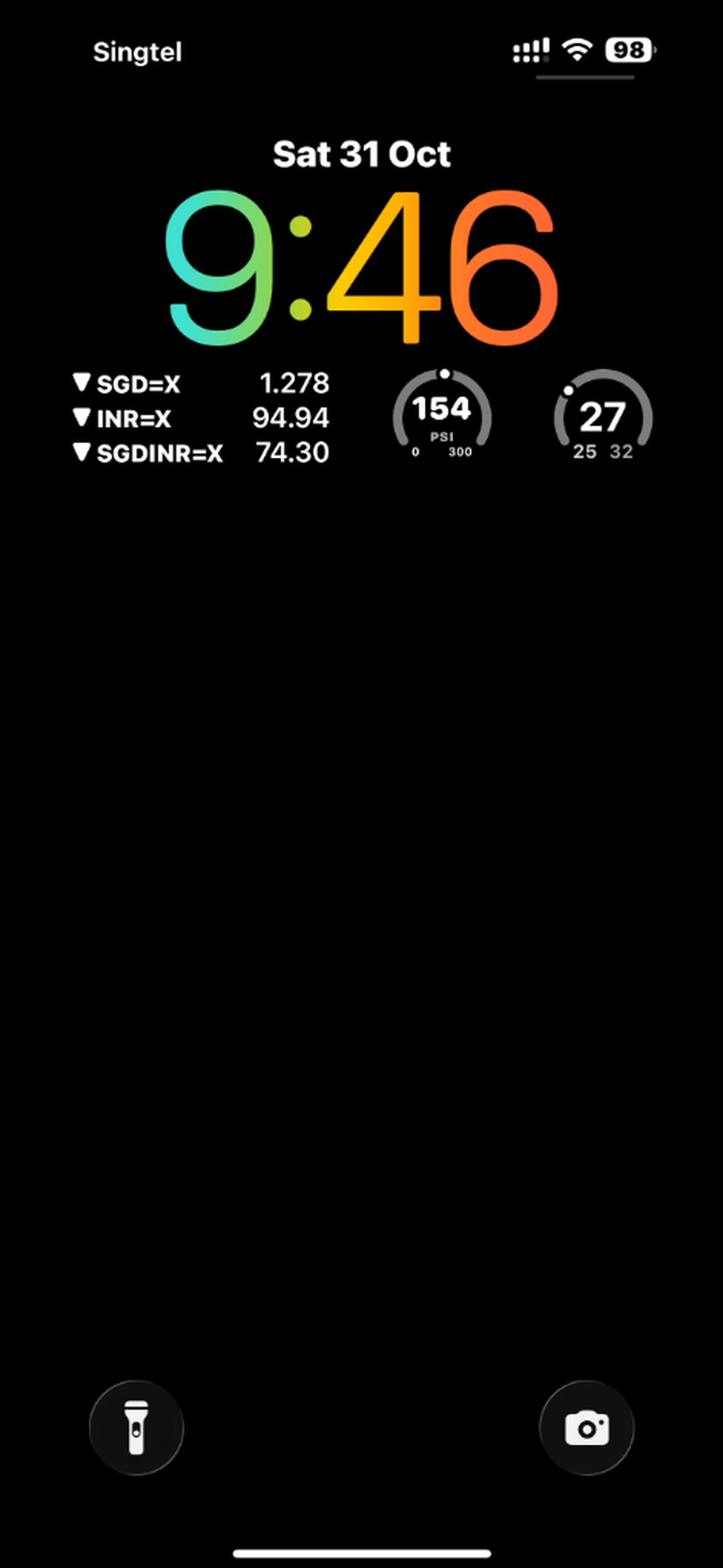
Glance at the air quality on your Always-On Display without unlocking your phone.
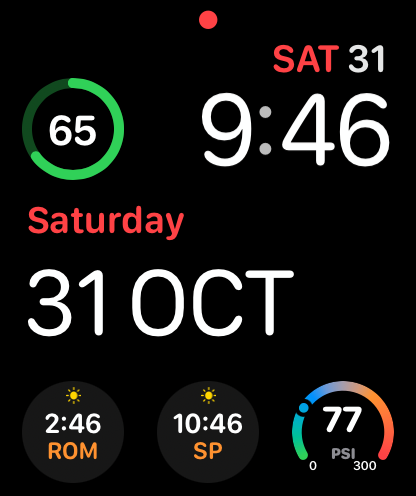
Live transboundary haze monitoring right on your wrist.
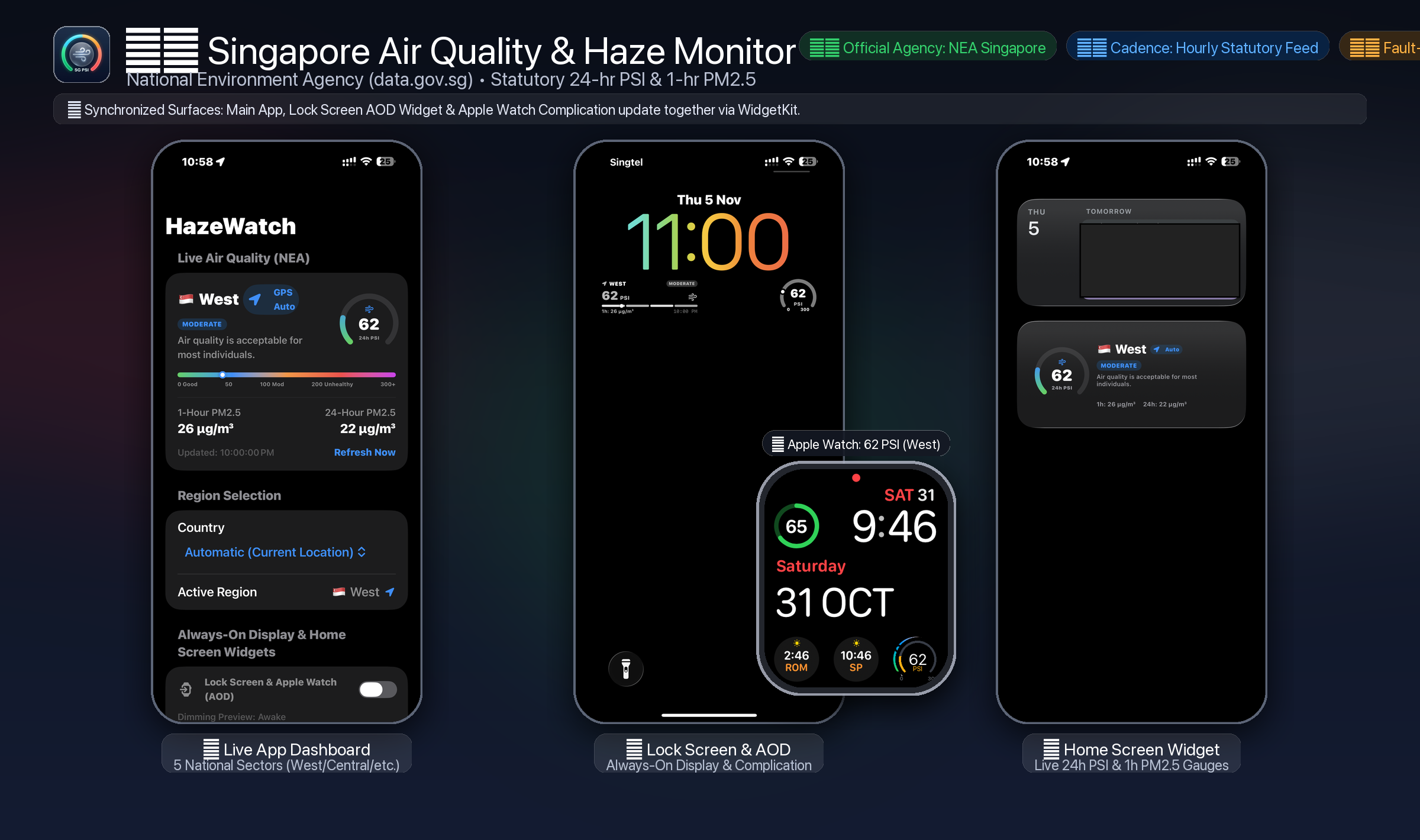
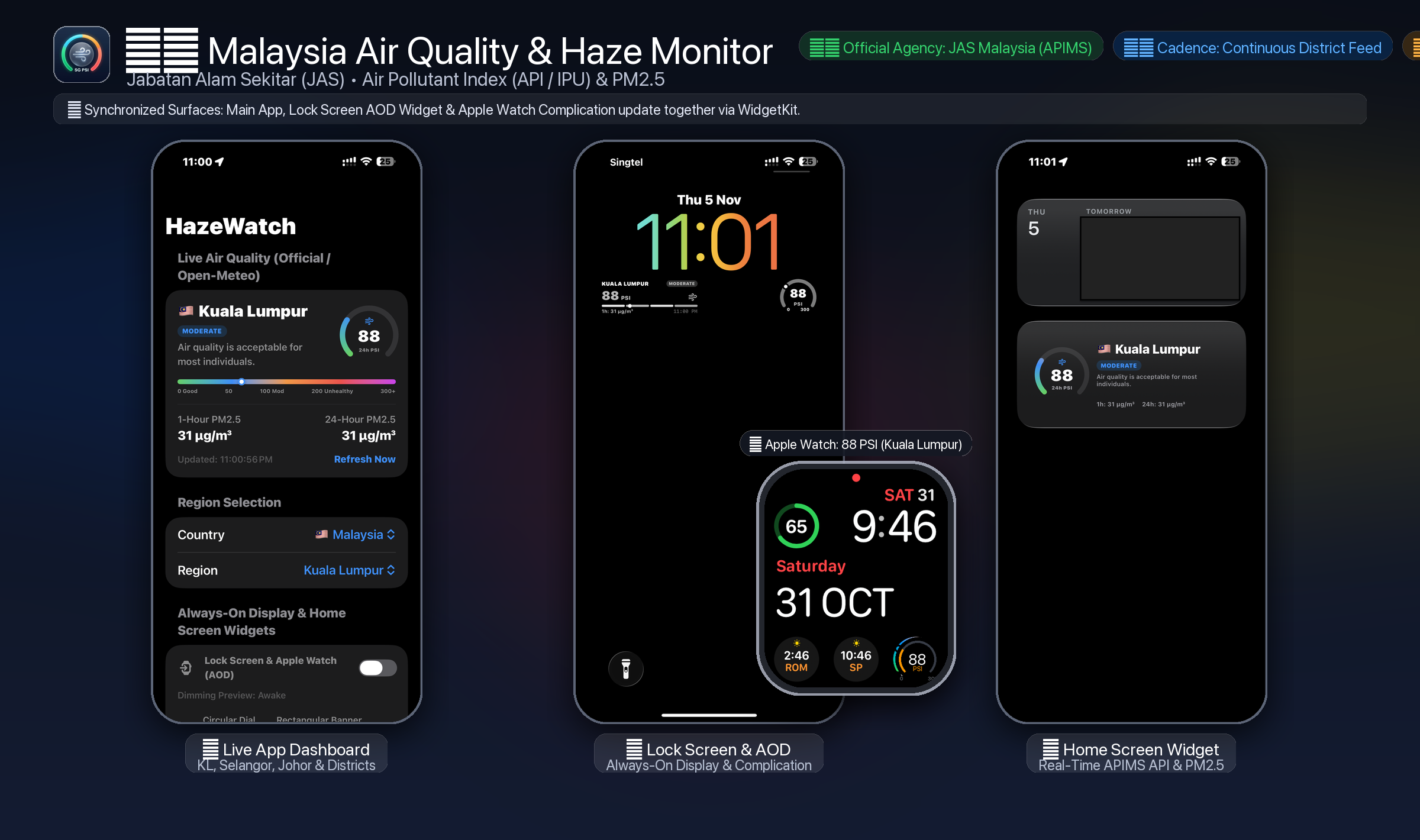
Real statutory sensor feeds for Singapore, Malaysia, and Indonesia synchronized across your App, Lock Screen AOD, Home Widget, and Apple Watch.
Source: National Environment Agency (data.gov.sg) • 24h PSI & 1h PM2.5 • West Sector (62 PSI)
Source: Jabatan Alam Sekitar (JAS) • Air Pollutant Index (API / IPU) & PM2.5 • Kuala Lumpur (88 PSI)
Source: KLHK / BMKG ISPU Scale • Copernicus Sensor Ingestion • Palangkaraya, Central Kalimantan (171 ISPU)
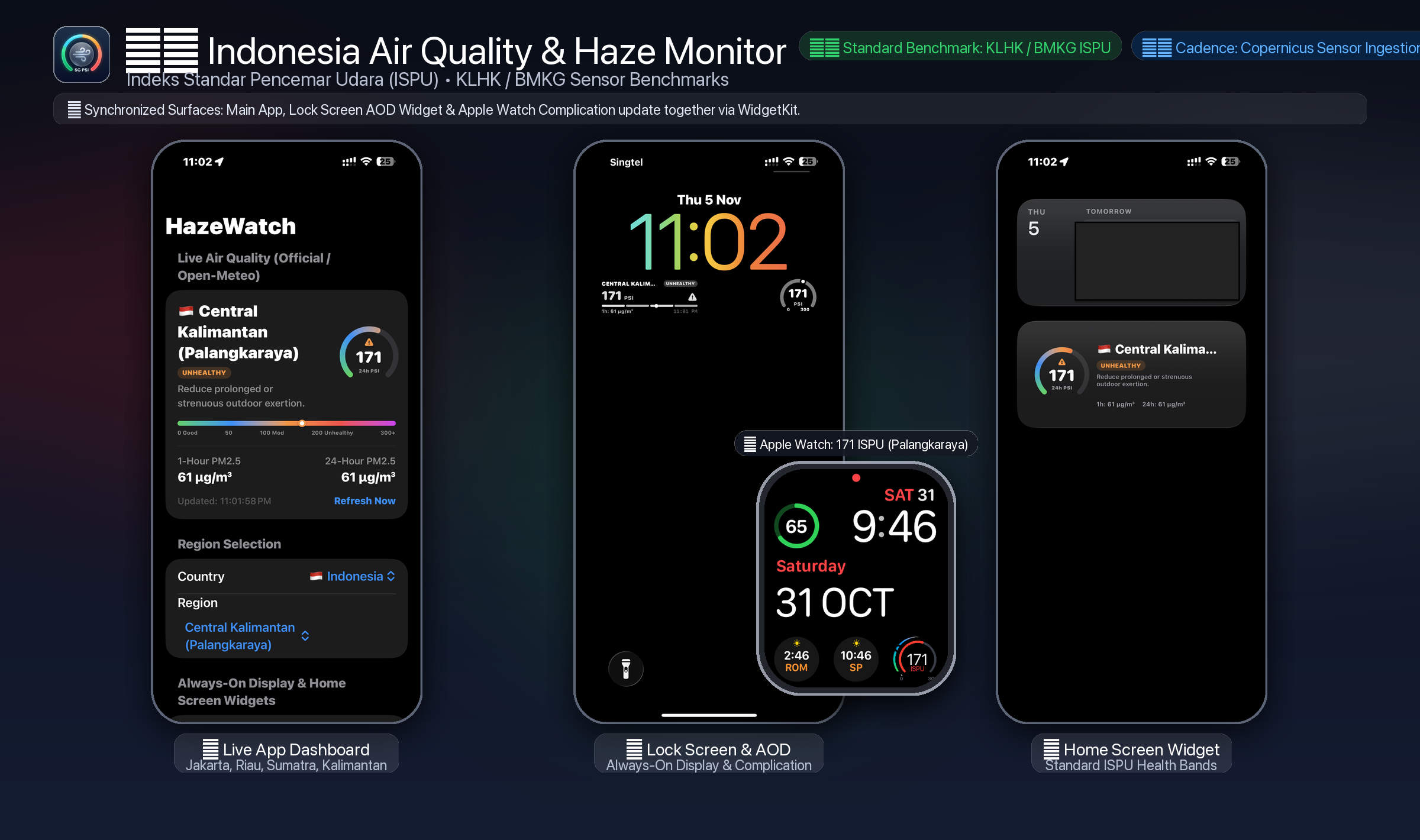
Experience HazeWatch across every iOS and watchOS surface in real time.
Colorful Medium Widget showing 🇸🇬 Singapore West (62 PSI) with 270° circular gauge, Moderate health badge, and 1h & 24h PM2.5 readings.
Circular dial complication right below the Lock Screen clock. Glance at 62 PSI without unlocking your phone or draining your battery.
Modular watch face complication with real-time 62 PSI gauge in the corner. Fully independent and synchronized with your iPhone.
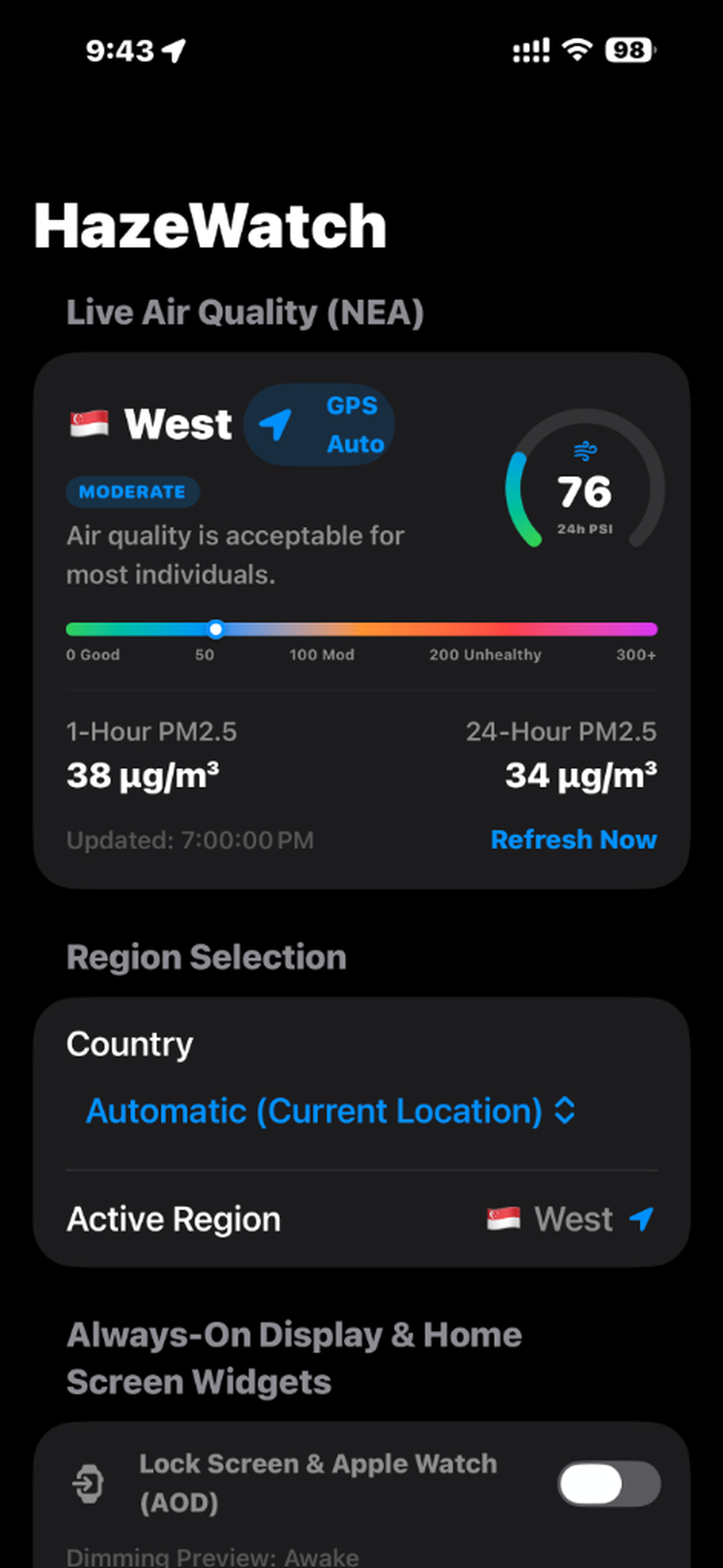
Full 24-hour PSI gauge, 1h and 24h PM2.5 concentrations, and multi-color air spectrum pointer for Singapore sectors.
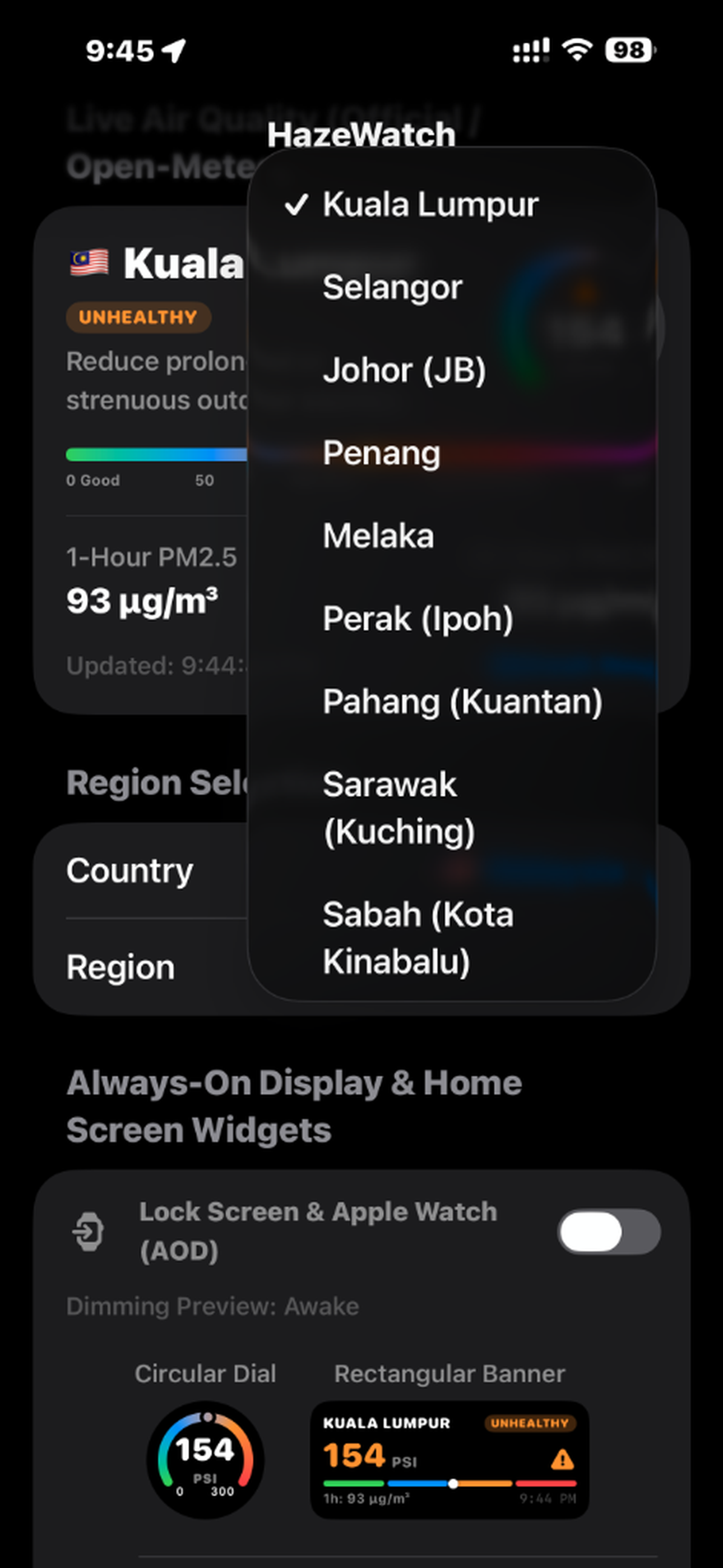
Quickly inspect air quality across major states: Kuala Lumpur, Selangor, Johor (JB), Penang, Sarawak, Sabah, and Indonesian provinces.
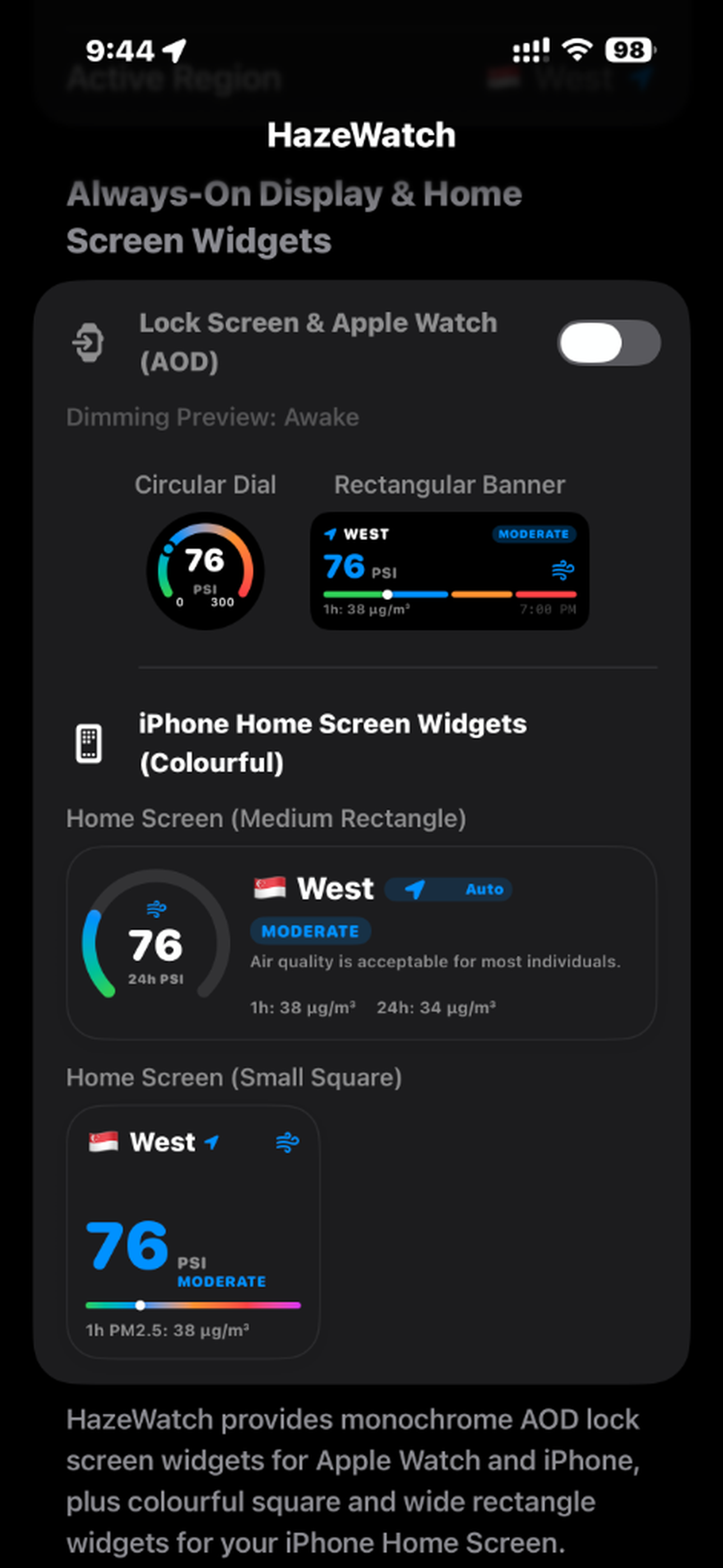
Built-in preview allows you to test both Awake and Dimmed AOD states for circular dials, banners, and home screen widgets.
Unified environmental data across Singapore (NEA), Malaysia (APIMS/DOE), and Indonesia (BMKG/KLHK).
Automatically calculates distance to the nearest official station with zero latency.
Designed for watchOS with native Circular, Rectangular, and Corner complications.
Zero tracking, no user profiles, no advertising SDKs, and zero cloud accounts required.
HazeWatch is engineered from the ground up on strict privacy-first principles. Because our app utilizes location services to find your nearest environmental station, we believe in complete transparency: